
Creating Characters
Learn about how to create and manage characters in Neocortex
Characters
Characters are the core of Neocortex, serving as containers for your Smart NPCs. Each character holds all the necessary data, settings, and configurations for managing a unique NPC. The Characters page provides a centralized interface for handling these characters efficiently.
You can access the Characters page by clicking on the Characters icon in the sidebar of the Neocortex dashboard.
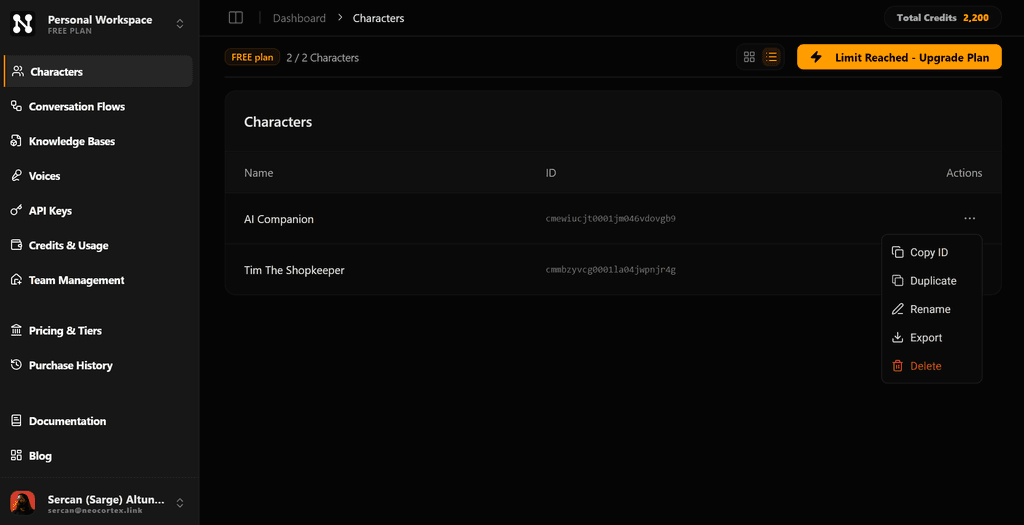
Navigation and Views
To help you organize and find your NPCs quickly, Neocortex offers two viewing modes:
- Grid View: Displays characters as large cards with avatars, ideal for visual identification.
- List View: A compact, table-like layout that is perfect for navigating through a large number of characters.
You can switch between these views using the toggle buttons located at the top-right of the characters list.
Creating a Character
To create a new character:
- Navigate to the Characters page from the sidebar menu.
- Click the Create New Character button. A dialog box will appear.
- Enter a name that reflects the purpose of your NPC.
- Click Create to finalize the process.
The new character will appear in your list, ready for customization.
Character Management
Neocortex provides several tools to help you manage your characters directly from the dashboard. To access these actions, click the three-dots (...) menu icon on a character card (in Grid View) or at the end of a character row (in List View):
Copying Character ID
Each character is assigned a unique Character ID for API calls and integrations. Click the Copy ID button to copy this ID to your clipboard instantly.
Duplicating a Character
Use Duplicate to create an exact copy of an existing character, including its prompt configurations and conversation flows. This is perfect for creating variations of NPCs or safe testing.
Renaming a Character
Select Rename to update your character's name. This changes the display name in the dashboard without affecting the character's unique ID or any integrated logic.
Exporting a Character
Select Export to download the character's configuration as a JSON file. This allows you to back up your characters or share them across different projects.
Deleting a Character
To permanently remove a character, select Delete and confirm the prompt. This will erase all associated data, so ensure you have a backup if the character is still needed.
Character Creation Limits
The number of characters you can create depends on your subscription plan. You can monitor your current usage at the top of the Characters page, which shows:
- The number of characters currently created.
- The maximum allowed character limit for your plan.
If you reach your limit, you can either delete unused characters or upgrade your subscription to increase your capacity.