
UI Elements
The chat UI that ships with the Neocortex Unity SDK
The SDK ships a complete chat interface, so a talking character needs no UI code of your own. Right click the Hierarchy, choose Neocortex > Complete Text Chat or Complete Voice Chat, and the whole rig is placed and wired for you.
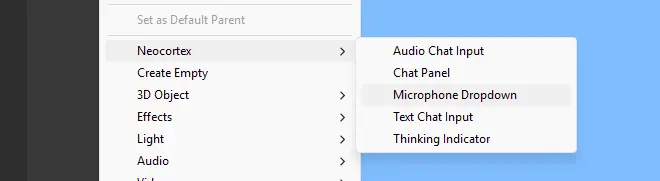
Both entries build the whole rig: canvas, chat panel, input, thinking indicator, and a wired character. To assemble something different, scaffold one of them and delete or rearrange the parts you do not want, or add the components below to your own canvas by hand.
The binders
Two components run the conversation loop: input in, bubbles out, thinking indicator, microphone handoff, history and errors. Which one you use depends on whether the scene has one character or a cast.
| Component | Use it for | Pairs with |
|---|---|---|
NeocortexChatUI | One character | NeocortexSmartAgent |
NeocortexGroupChatUI | A whole cast | NeocortexGroupDirector |
One binder per scene
In a group scene put a single NeocortexGroupChatUI on the director. Do not also put a NeocortexChatUI on each character, or every reply is printed once per UI.
Both expose the same fields, and every widget reference is optional and auto resolved from the GameObject's children. Leave one empty and that feature is simply skipped, so the same component serves text only, voice only and mixed setups.
| Field | Description |
|---|---|
| Agent or Director | Who the UI talks to. |
| Player Name | The name on the player's own messages, used for the avatar's initial. |
| Chat Panel | The transcript. |
| Text Chat Input | Typed input. |
| Audio Chat Input | The record button. |
| Thinking Indicator | Shown while the character composes. |
| Voice Input | The microphone. |
Every field is public, so you can wire one from code just as well:
// Everything is optional, this is the whole setup for a working chat
var ui = gameObject.AddComponent<NeocortexChatUI>();
ui.agent = myAgent;
ui.playerName = playerProfile.displayName;
Binding the microphone switches the agent's Auto Voice Input off, so the player's speech is never sent twice.
Chat Panel
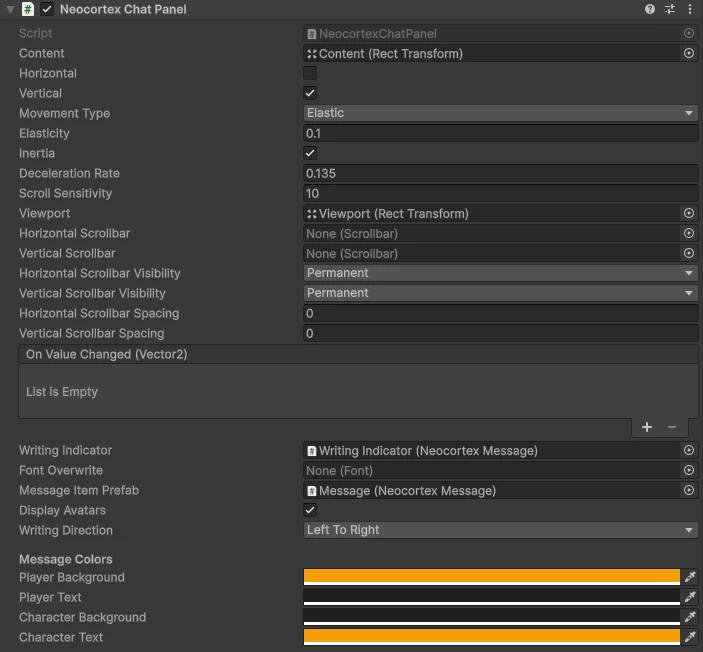
NeocortexChatPanel draws the transcript. It inherits from ScrollRect, so messages scroll. Messages carry a sender name, which becomes the avatar's initial, so in a group scene it is obvious who said what.
Methods
AddMessage
Adds a message bubble to the panel.
- Parameters:
- sender: The name shown on the bubble, and the letter on its avatar. Pass
nullor an empty string for no avatar. There is a shorthand overload without this parameter. - text: The message to display.
- isUser:
truefor the player's own message, which changes the alignment and colours.
Chat Panel Example var chatPanel = GetComponent<NeocortexChatPanel>(); chatPanel.AddMessage("Aria", "Well met, traveller.", false); chatPanel.AddMessage("You", "Where am I?", true); chatPanel.AddMessage("Something happened.", false); // no sender, no avatar - sender: The name shown on the bubble, and the letter on its avatar. Pass
ClearMessages
Removes every bubble from the panel.
chatPanel.ClearMessages();Right to left languages
writingDirection flips both the text and the alignment of the messages. Set it in the inspector or from code when the character speaks Arabic, Hebrew, Urdu or Persian.
chatPanel.writingDirection = WritingDirection.RightToLeft;
chatPanel.AddMessage("مرحبا، كيف حالك؟", true);
Inspector
| Field | Description |
|---|---|
| Display Avatars | Show a small avatar with the sender's initial beside each message. |
| Message Colors | Background and text colour for the player and for characters. |
| Message Item Prefab | Your own NeocortexMessage prefab, to restyle every bubble. Leave empty for the built in one. |
| Font Overwrite | Apply one font across the transcript. |
A custom message prefab without an Avatar object simply shows no avatar, so older prefabs keep working.
Text Chat Input
An input field with a send button.

Events
OnSendButtonClicked
Raised when the send button is clicked, or the player presses return.
- Arguments:
- message: The text the player entered.
Text Chat Input Example var textChatInput = GetComponent<NeocortexTextChatInput>(); textChatInput.OnSendButtonClicked.AddListener((message) => { agent.TextToText(message); });
Audio Chat Input
A record button bound to an audio receiver. It shows a recording state while the microphone is live and a waiting state while the character answers.

From left to right:
- Amplitude Indicator: Shows the level of the audio input.
- Microphone Timer: Counts down the wait before recording stops on its own.
- Push To Talk Button: Held down to record.
In push to talk mode the player holds the button to record, and the message is sent when they release it.
In voice activity mode recording starts when the player starts speaking and stops when they stop.
Either way, the transcript of what they said is printed in the chat panel.
Methods
SetChatState
Switches the widget between its recording and waiting states. The binders call it for you, so you only need it when you drive the microphone yourself.
- Parameters:
- isRecording:
truewhile the microphone is live,falsewhile the character answers.
Audio Chat Input Example audioInput.voiceInput = myAudioReceiver; audioInput.SetChatState(false); // lock the button while the character replies - isRecording:
Thinking Indicator
Shows a loading animation while the character is composing. In Text chat lines mode the binders also show it during the pause between lines, so the gap reads as the character typing. See chat lines.

Methods
Display
Shows or hides the thinking indicator.
- Parameters:
- isVisible:
trueto show it,falseto hide it.
Thinking Indicator Example var thinkingIndicator = GetComponent<NeocortexThinkingIndicator>(); thinkingIndicator.Display(true); - isVisible:
Microphone Dropdown
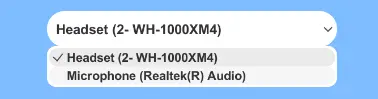
Lists the available input devices and remembers the choice, so players can switch microphone in game. It reads and writes the same selection as NeocortexAudioReceiver, so no wiring is needed.
Push To Talk Button
A button that reports being held rather than clicked, used by the Audio Chat Input in push to talk mode.
Events
OnButtonPressed
Raised when the player presses the button down.
OnButtonReleased
Raised when the player lets go.
pushToTalkButton.OnButtonPressed.AddListener(() => mic.StartMicrophone());
pushToTalkButton.OnButtonReleased.AddListener(() => mic.StopMicrophone());