
Voice Clones
Learn how to create and manage voice clones in Neocortex
Voice clones allow you to give your characters unique, high-quality voices. You can create your own custom voices by either cloning an existing voice or designing a completely new one from scratch.
Voice Clones Page
The Voice Clones page provides a centralized interface for handling all your custom voices. From here, you can initiate the creation process and manage your existing library of sounds.
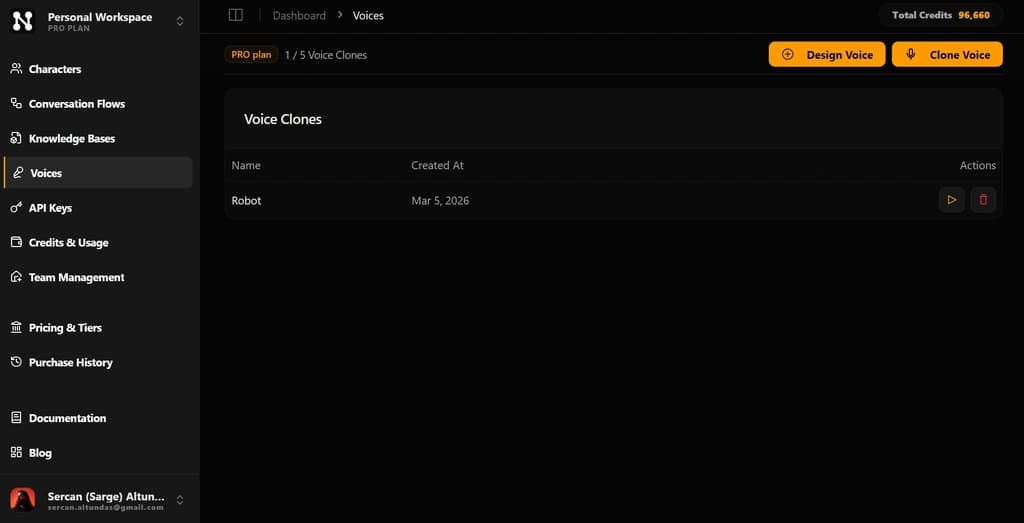
Navigation and Management
- Action Buttons: Locate the Create buttons at the top right of the page to choose your preferred creation method.
- Preview & Playback: Each voice in your list includes a preview button, allowing you to listen to the sound profile before assigning it to a character.
- Deleting Voices: To permanently remove a voice, use the Delete option from the management menu on the voice card.
Creating a Voice
When creating a new voice, Neocortex offers two powerful workflows: Voice Cloning and Voice Design.
Option 1: Voice Cloning
Voice cloning creates a high-fidelity replica of a specific voice using a real-world audio sample.
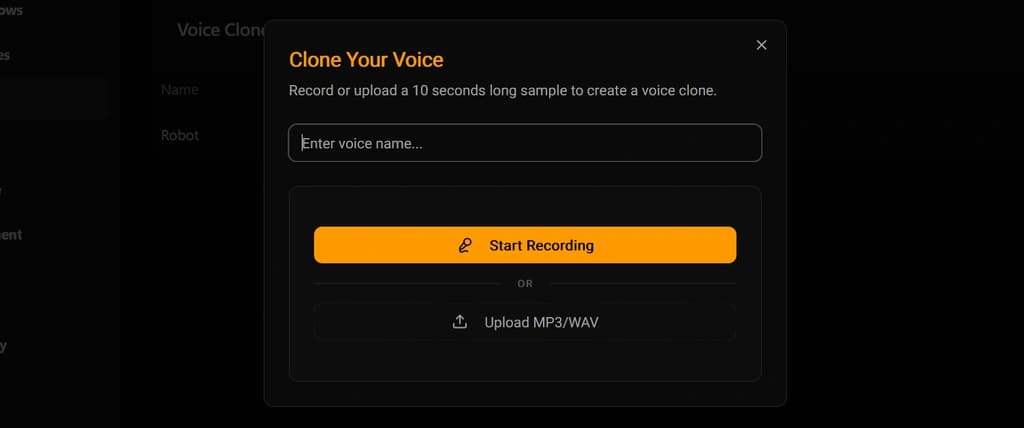
To clone a voice, you can choose one of the following methods:
Recording Directly
- Ensure your microphone is connected and active.
- Grant the browser microphone access when prompted.
- Read the sample text provided in the recording modal clearly.
- Process the recording to generate your unique voice clone.
Uploading Audio
- Select and upload an existing audio file (MP3 or WAV).
- The sample must be a minimum of 10 seconds long to ensure high-quality synthesis.
Option 2: Voice Design
Voice Design uses AI to generate a unique voice based on a descriptive prompt.
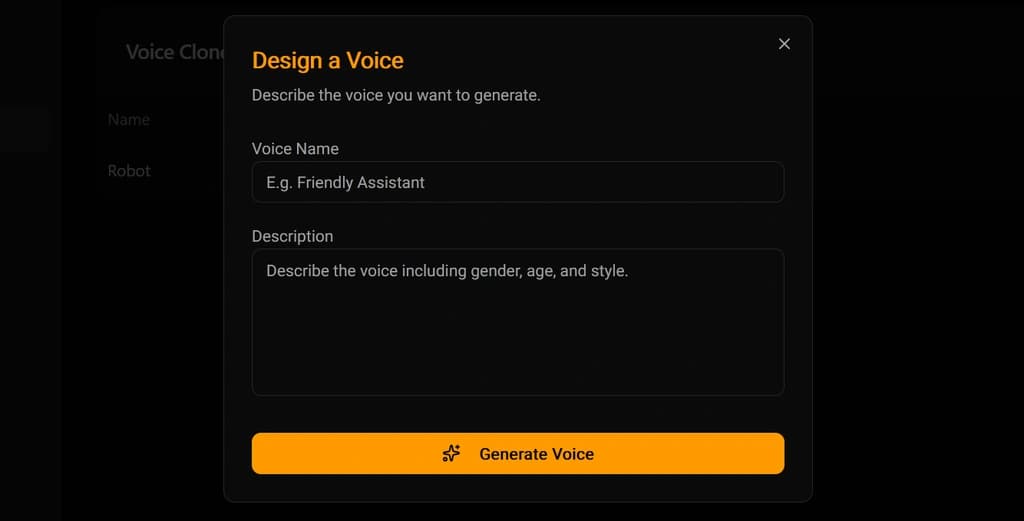
- Describe the Voice: Provide a detailed description including attributes like age, gender, and accent (e.g., "A calm, middle-aged woman with a soft Australian accent").
- Generate Samples: The system will process your description and generate 3 unique voice samples.
- Preview and Save: Listen to each of the generated previews, select the one that best fits your requirements, and save it to your library.