
Editor Tools
The Neocortex window, Details panel pickers and sample tools in the Unreal Editor. Manage your API key, pick AI characters and question sets, and open the samples.
The plugin adds a few tools to the Unreal Editor, so you can set up AI characters without copying ids by hand.
The Neocortex window
Open it from Tools > Neocortex. It docks like any other editor tab.
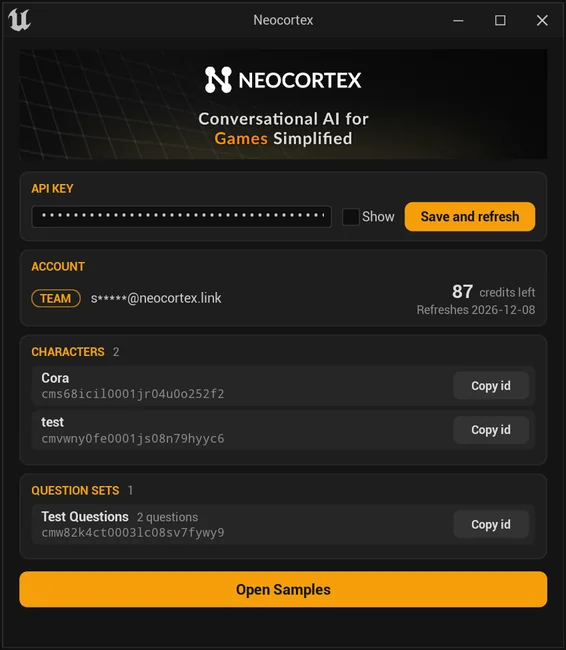
From top to bottom, it holds:
- API Key: paste your key and press Save and refresh, or press Enter. Show reveals the key. The key is saved in
Config/DefaultGame.ini, and you can also edit it inProject Settings>Game>Neocortex. - Account: your plan, the team owner, your remaining credits and when they refresh.
- Characters and Question Sets: everything on your team, with each id and a Copy id button. A question set shows how many questions it has. Each list shows up to five rows and scrolls when you have more.
- Open Samples: offers to save your changes, then opens the samples launcher map. Press Play to run it.
Details panel pickers
On a Neocortex Smart Agent, the Project ID gets a Pick button that lists your characters. On a Neocortex Quiz Agent, Character ID and Question Set ID get one each. The button shows the name of the character or set the id belongs to, and you can still paste an id into the field. Without an API key, the list tells you to add one in Tools > Neocortex. Refresh the list at the bottom fetches it again.
Microphone input
Unreal's voice capture is off in a new project. The plugin turns it on when it loads, in the editor and in packaged games, so the microphone works without editing DefaultEngine.ini or restarting.
Rebuilding the samples
The sample maps, their Widget Blueprints and Cora ship ready to use. To rebuild them, for example after changing a sample's layout in code, enable the Python Editor Script Plugin (and, on Unreal Engine 5.0, Editor Scripting Utilities) and run:
UnrealEditor-Cmd.exe YourProject.uproject -ExecutePythonScript="<path to>/Plugins/Neocortex/Scripts/build_samples.py" -unattended -nullrhiIt imports Cora and her animations into Content/Samples/Cora, makes the checker floor, and writes the maps and their screens to Content/Samples/Maps, replacing what it made before.
Styling the widgets
The chat widgets and the sample screens draw themselves in the Neocortex style: dark pills with amber outlines, Arial text, laid out in pixels on a 1920 x 1080 screen. The colours and shapes come from NeocortexUI in UI/NeocortexUIStyle.h, and the icons are the images in the plugin's Extras/UI folder. For your own screens, drop NeocortexLabel, NeocortexPillButton, NeocortexToggle and NeocortexDropdown into a Widget Blueprint for the same look. See UI widgets.
Quick Start
Install the Neocortex Unreal Engine plugin and talk to an AI character in Unreal Engine 5 by text or voice, with ready chat widgets, seven sample maps and a few lines of C++ or Blueprint.
Samples
Seven Neocortex Unreal SDK sample maps with text and voice chat, actions, interactables, group chat, usage gating and a quiz show for AI NPCs in Unreal Engine 5.