
Samples
Seven Neocortex Godot SDK sample scenes with text and voice chat, actions, interactables, group chat, usage gating and a quiz show for AI NPCs in Godot 4.
The SDK ships seven sample scenes and a launcher, starring Cora, a 3D character with her own animations and lip sync. Each sample is a complete, working setup you can run and take apart. They live in addons/neocortex-godot-sdk/samples/.
Every sample's interface is part of its scene, so you see the whole layout when you open it in the editor. The sample scripts only fill it in and react to it. Move, restyle or remove anything in the scene tree, and the script keeps working with what is there.
Opening the launcher
Save your API key in the Neocortex dock first, then press Open Samples at the bottom of the dock. You can also pick Project > Tools > Neocortex > Open Samples, or run addons/neocortex-godot-sdk/samples/neocortex_samples.tscn.
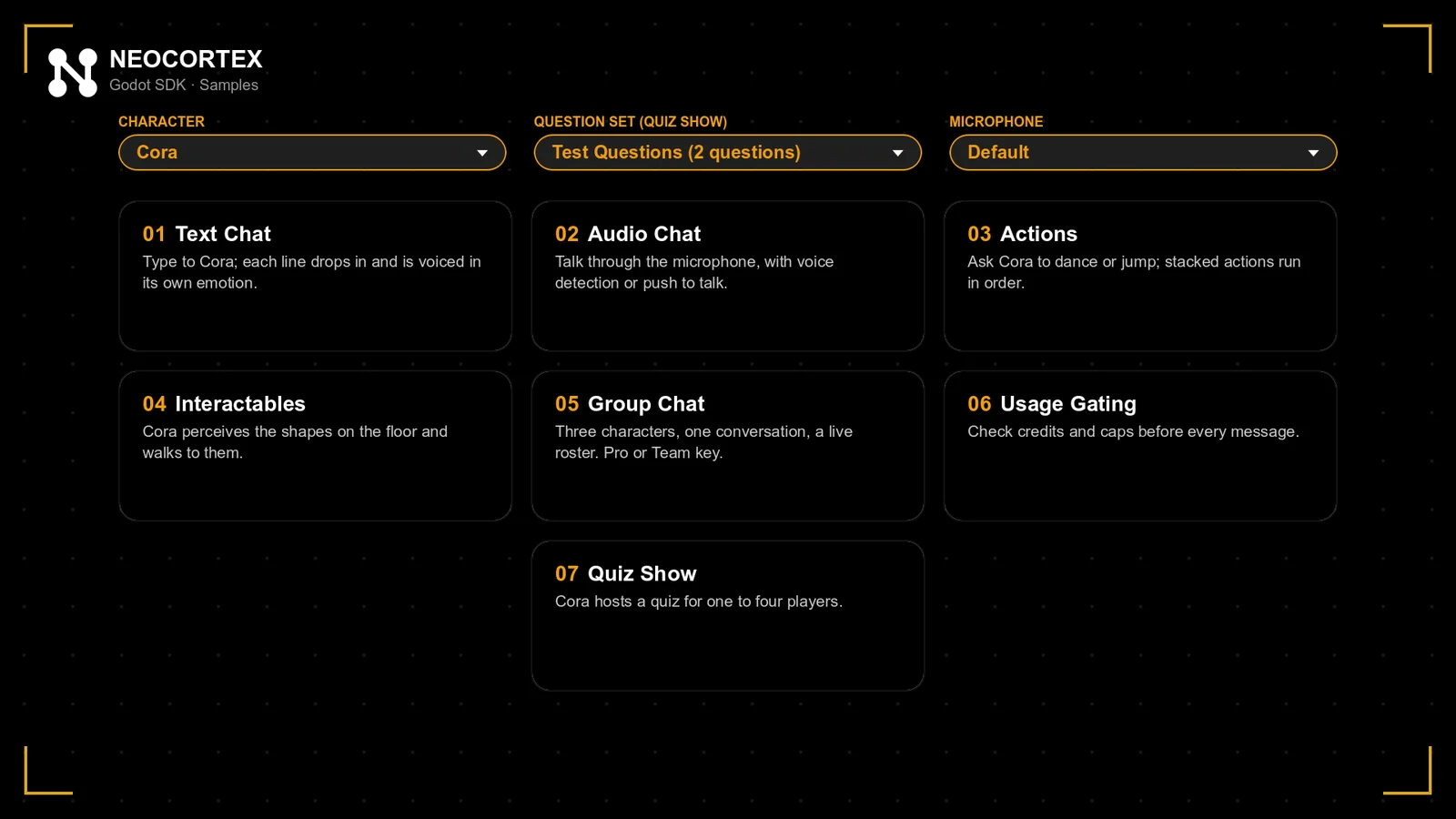
Above the sample cards, pick:
- Character: one of your characters. Every sample talks as it.
- Question set: the set the Quiz Show plays.
- Microphone: the input device for the voice samples.
Your picks are remembered between runs. Press Escape, or Back to Samples, to return to the list.
1. Text Chat
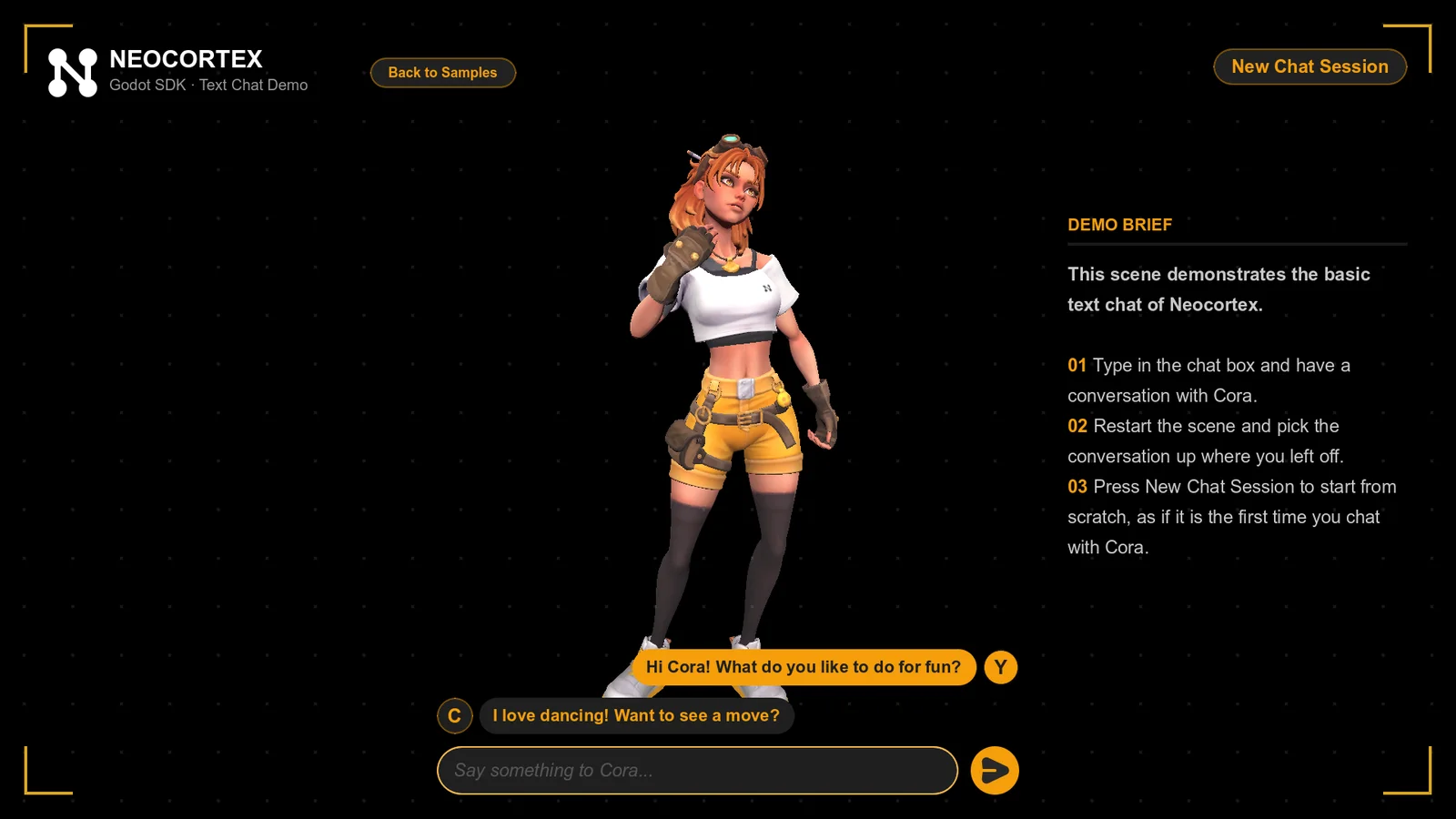
1_text_chat_demo.tscn. Type to a character. Each line drops in as it is spoken, in its own emotion, with a typing bubble between lines. Cora thinks while the reply is on its way and talks while a line plays. Restart the scene and the conversation reloads (load_history_on_start). New Chat Session starts over.
2. Audio Chat
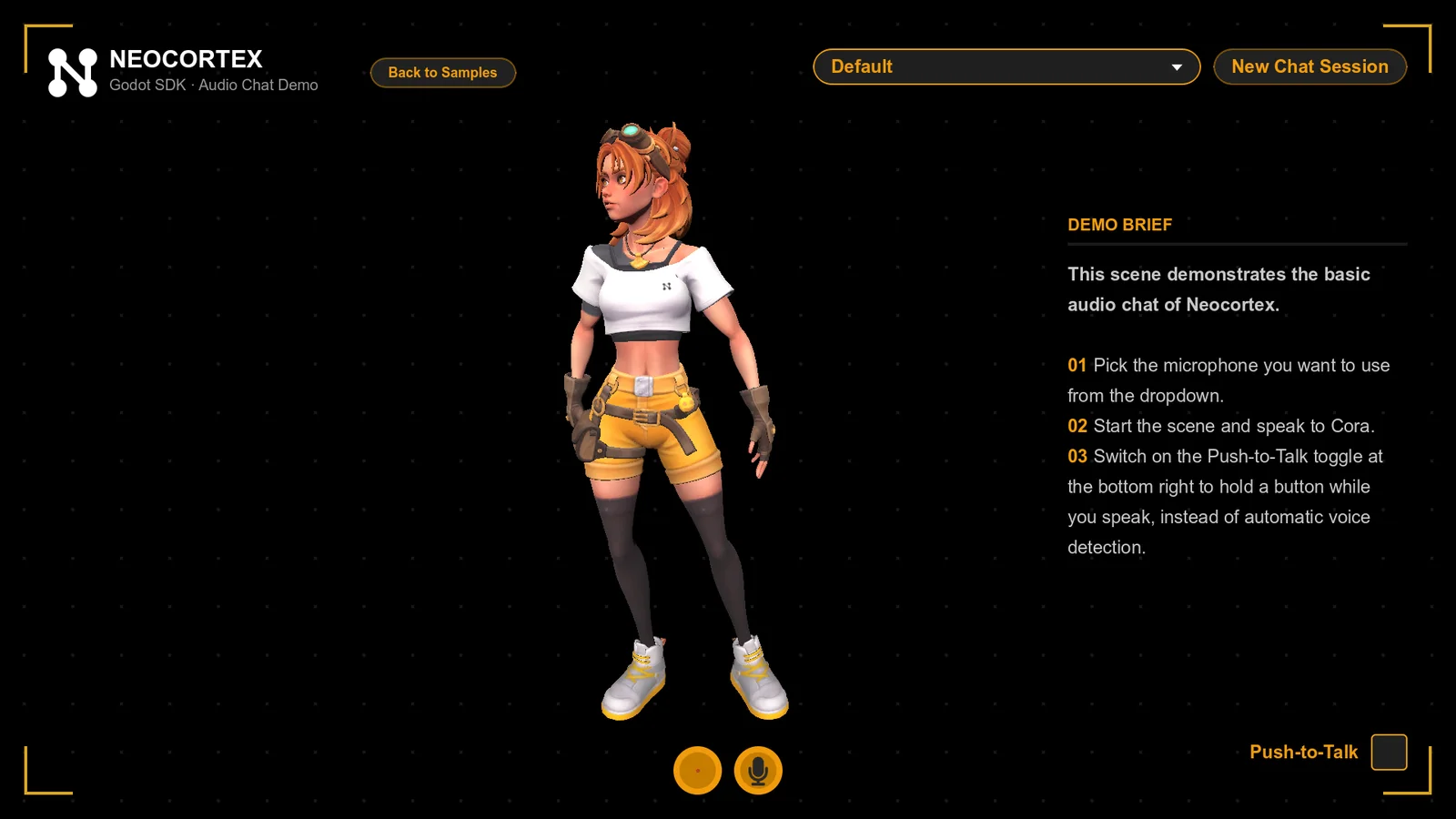
2_audio_chat_demo.tscn. Talk through the microphone. The voice widget shows your level, the silence countdown and when the character is answering. Switch on Push-to-Talk to hold a button while you speak instead.
3. Actions
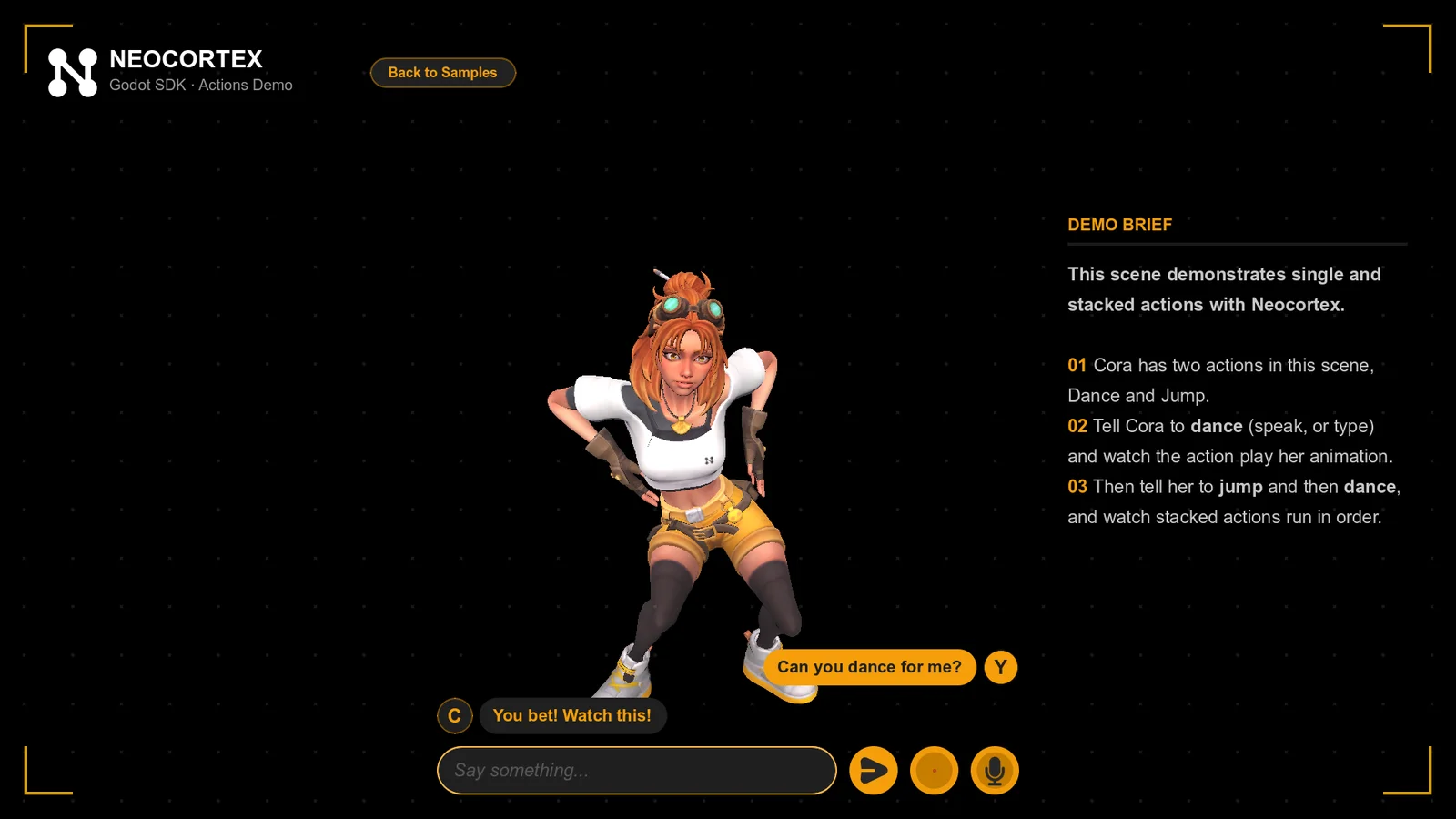
3_actions_demo.tscn. Ask Cora to dance or jump, by voice or in the text box. Ask for both in one sentence and she plays them in order, each animation finishing before the next starts. Set delay_between_actions on the agent to add a pause between them. Add DANCE and JUMP actions to your character first. See Actions.
4. Interactables
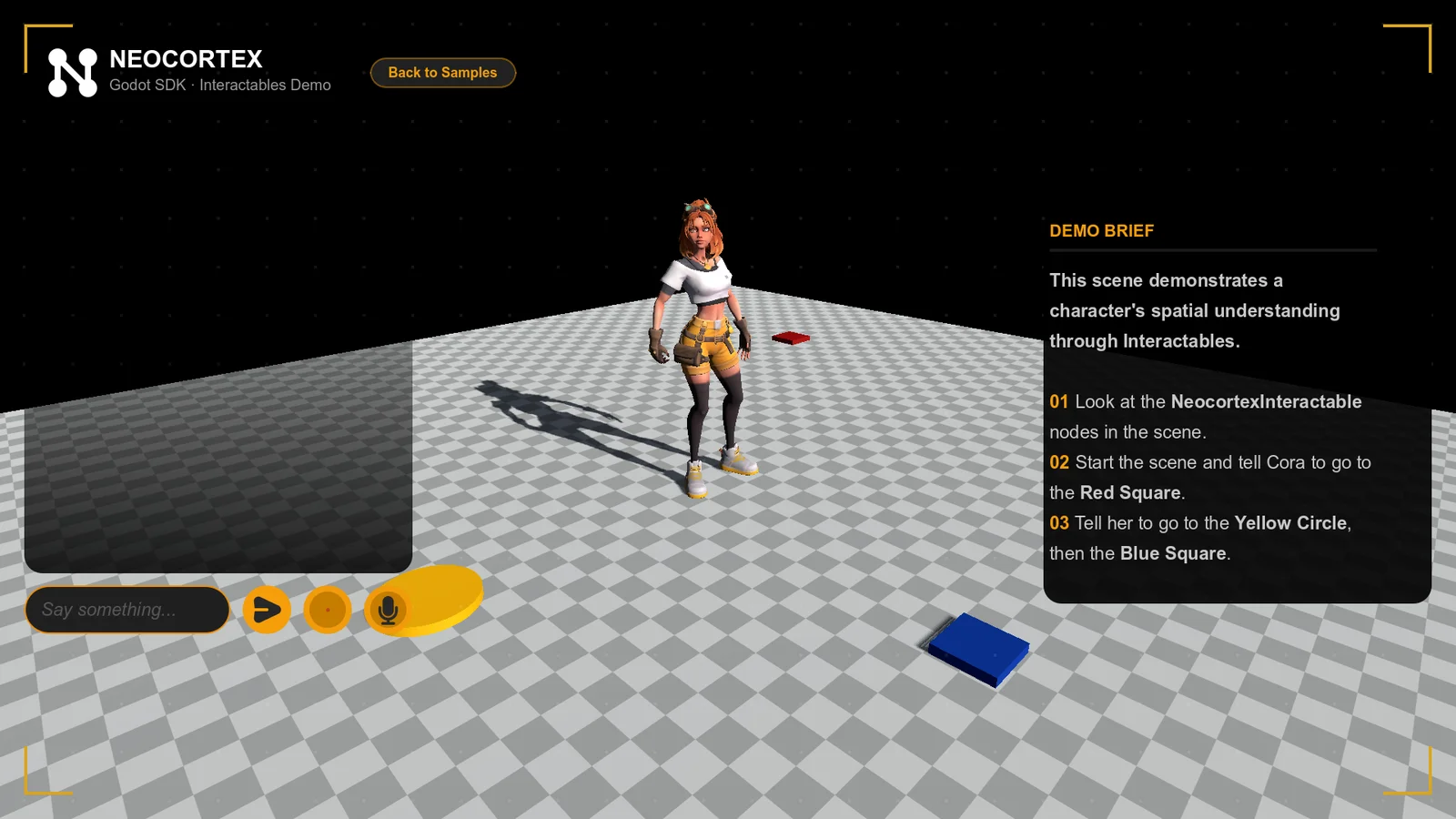
4_interactables_demo.tscn. Three shapes on the floor carry a NeocortexInteractable. Say "go to the blue square, then the red one" and Cora walks to the centre of each in turn, because every GO_TO_LOCATION action carries the shape's id as its target_id. Add a GO_TO_LOCATION action to your character first.
5. Group Chat
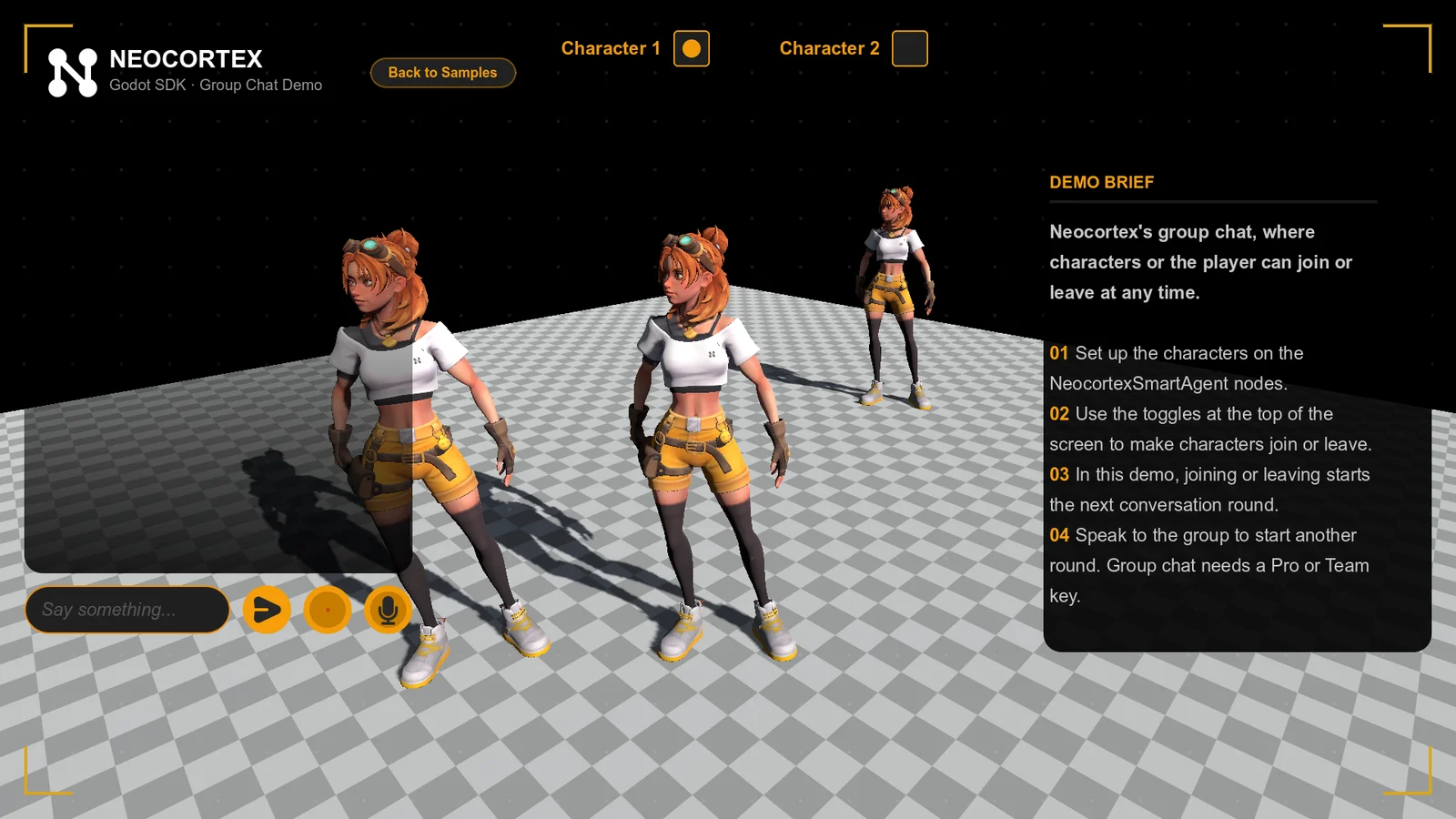
5_group_chat_demo.tscn. Three characters in one conversation through a NeocortexGroupDirector, with a live roster: toggle a character to walk in and join, or leave the table. The cast reacts to every arrival and departure. Needs a Pro or Team plan.
6. Usage Gating
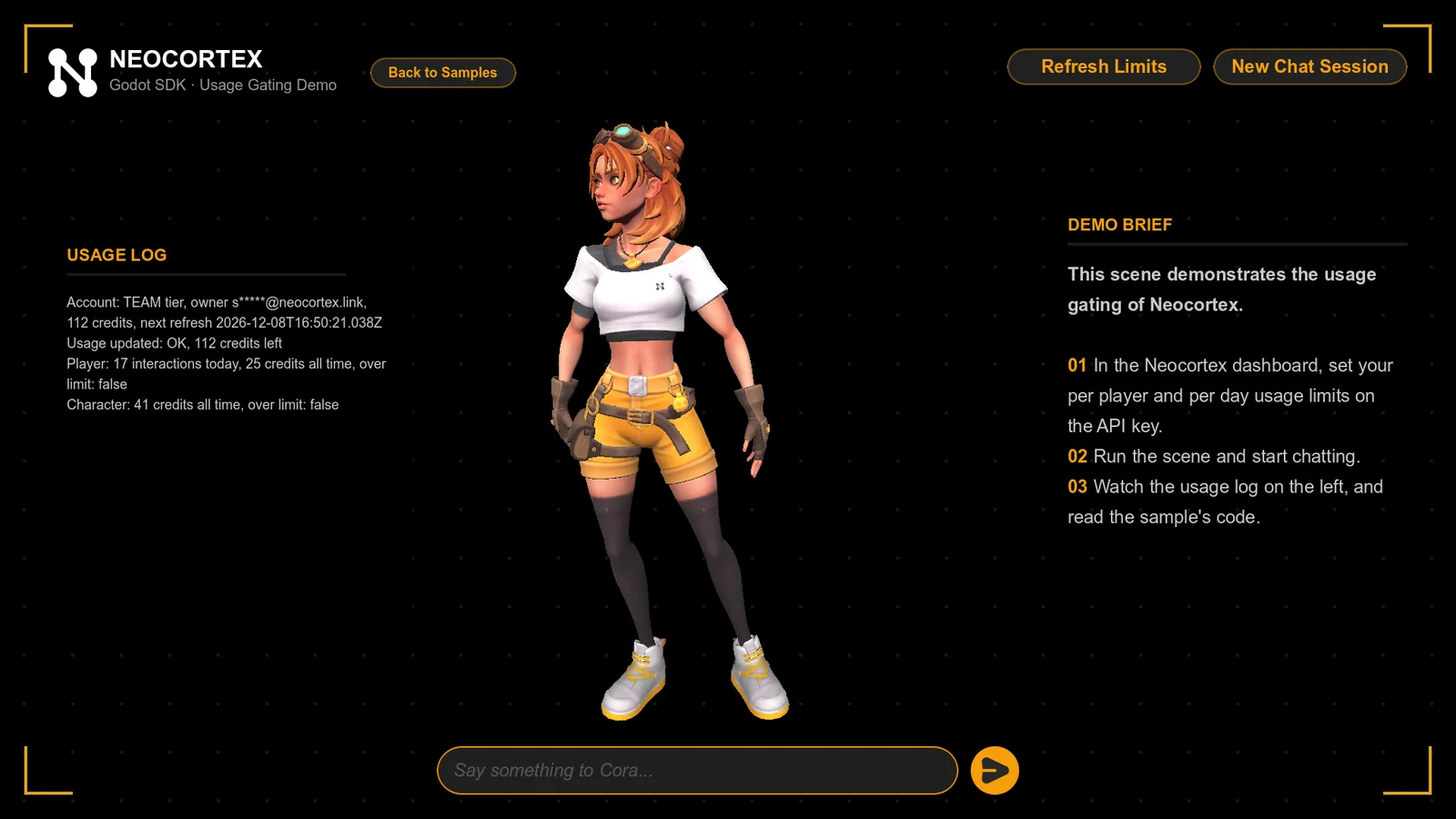
6_usage_gating_demo.tscn. Before every message, a NeocortexUsageGate checks your team's usage and the per-player and per-character limits, and only then lets the character answer. The log shows your account, the usage and every gate signal.
7. Quiz Show
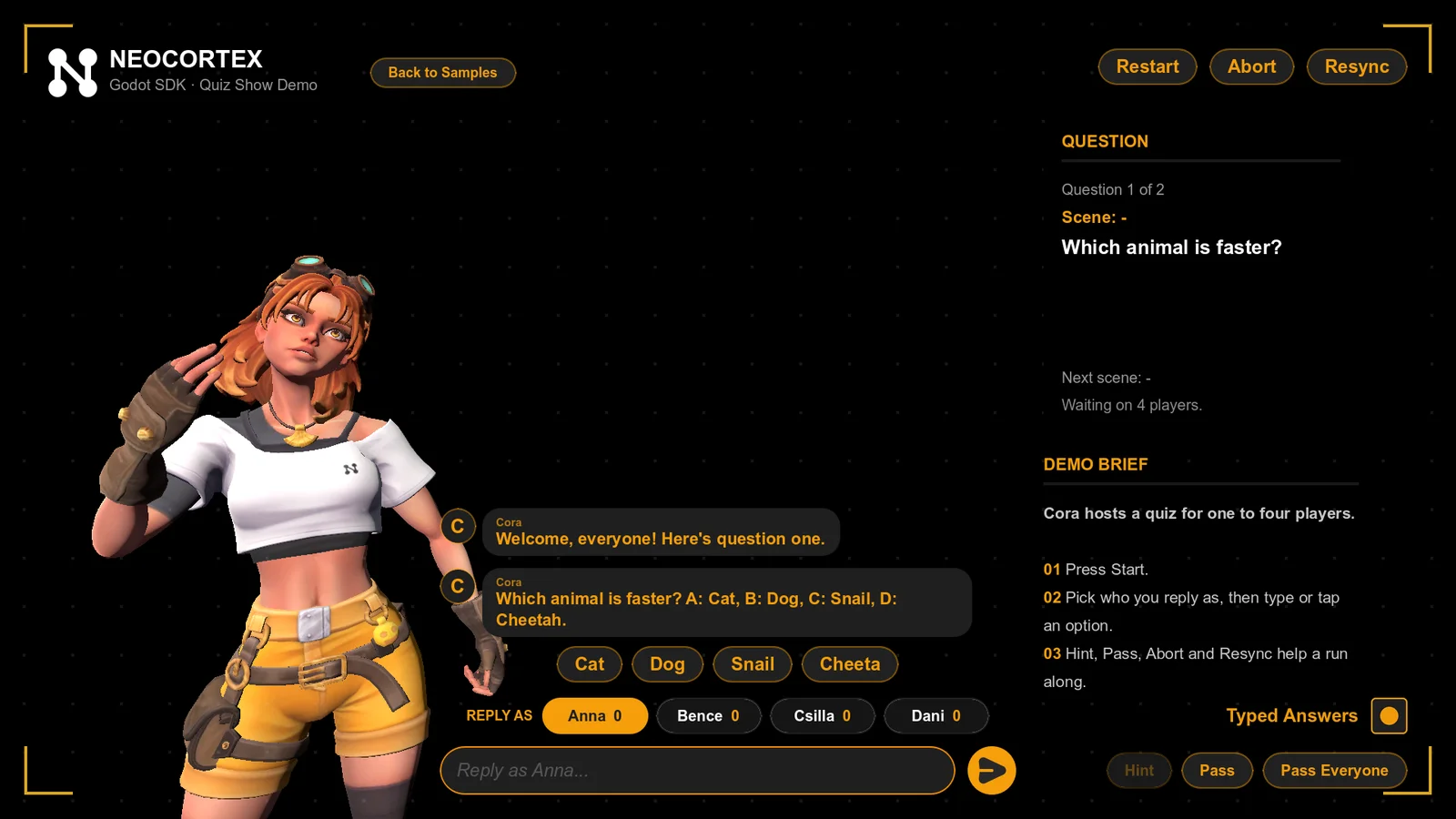
7_quiz_show_demo.tscn. Cora hosts a quiz for one to four players from your question set. Type an answer, tap an option, ask for a hint or pass. The question card shows the question and its scene keyword, the chips under the chat pick which player you answer for and show their scores, and Abort and Resync show recovery. Needs a Team plan. See Quiz.
Editor Tools
The Neocortex dock, Tools menu, inspector pickers and debugger tab in Godot 4. Manage your API key, pick AI characters and add a working chat in one click.
Group Chat
Put several AI characters in one conversation in Godot 4 with the Neocortex Group Director, each with its own voice, joining, leaving and talking to each other.