
Characters
Learn about how to create and manage characters in Neocortex
Characters
Characters serve as containers for your Smart NPCs in Neocortex. Each character holds all the necessary data, settings, and configurations for managing a unique NPC. The Characters page provides a centralized interface for handling these characters efficiently.
You can access the Characters page by clicking on the Characters icon in the sidebar of the Neocortex dashboard.
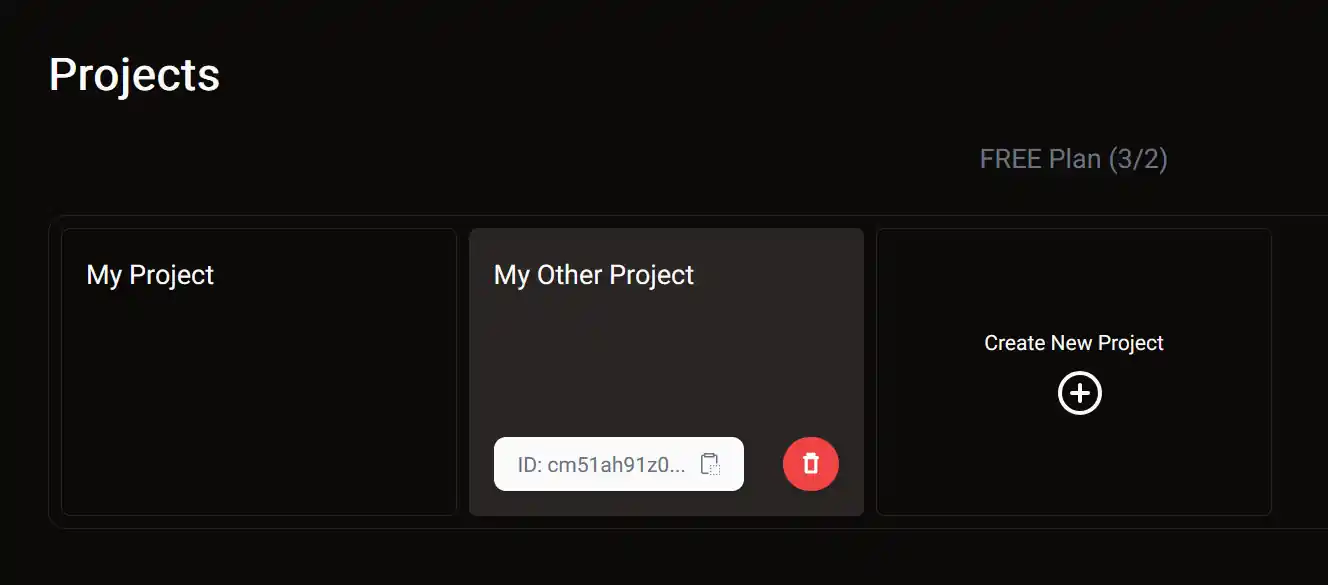
Creating a Character
To create a new character:
- Navigate to the
Characterspage from the sidebar menu. - Click the
Create New Characterbutton. A dialog box will appear, prompting you to enter a name for the character. - Enter a descriptive name that reflects the purpose of your NPC.
- Click the
Createbutton to finalize the process.
The new character will appear in the list on the Characters page, ready for customization.
Deleting a Character
To delete a character:
- Locate the character you want to delete on the Characters page.
- Hover over the character to reveal action buttons.
- Click the Delete button.
- Confirm the deletion in the prompt.
Deleting a character is permanent, so ensure it is no longer needed before proceeding.
Copying a Character ID
Each character is assigned a unique Character ID for API calls and integrations. To copy a Character ID:
- Hover over the desired character on the
Characterspage. - Click the
ID: ...button to copy the ID to your clipboard.
Handle Character IDs securely to prevent unauthorized access.
Character Creation Limits
The number of characters you can create depends on your subscription plan. To view your limit:
- Navigate to the
Characterspage. - Check the usage indicator at the top, which shows the number of characters created and the maximum allowed for your plan.
If you need more characters, consider upgrading your plan to increase the limit.